At the core of Enterpristore PIM lies a flexible and robust system for modeling your product catalog. Whether you are managing straightforward items or complex, multi-variant configurations, the platform provides the structural tools necessary to organize data effectively. This section breaks down the essential components of catalog management—from defining Product Types and building hierarchical Categories to configuring the granular Attributes and Families that ensure your data remains consistent and rich across every channel.
Product Management
Enterpristore PIM supports both simple and complex type structures with robust attribute and category systems.
Simple Product
- The most basic and common product type
- Physical, unique, standalone product with no variations
- Can include customizable options within a single SKU
Configurable Product
- Products that offer variations (e.g., size, color, material, features)
- Customers select configurations on the front end
- System-managed attributes ensure accurate data across all variants
How to Create a Simple Product
- Go to Catalog → Products and click Create Product.
- Select product type Simple, choose an Attribute Family, and enter SKU.
- Click Save Product to open Edit Product.
- Complete General Attributes:
- SKU
- Name
- URL Key
- Add Short Description and Description.
- Enter Price and Cost Price.
- Enable Status under Technical.
- Assign appropriate Categories.
- Configure Associations:
- Related Products – Similar or alternative items
- Upsell Products – Premium alternatives
- Cross-Sell Products – Complementary items
- Click Save Product.
After Saving a Simple Product
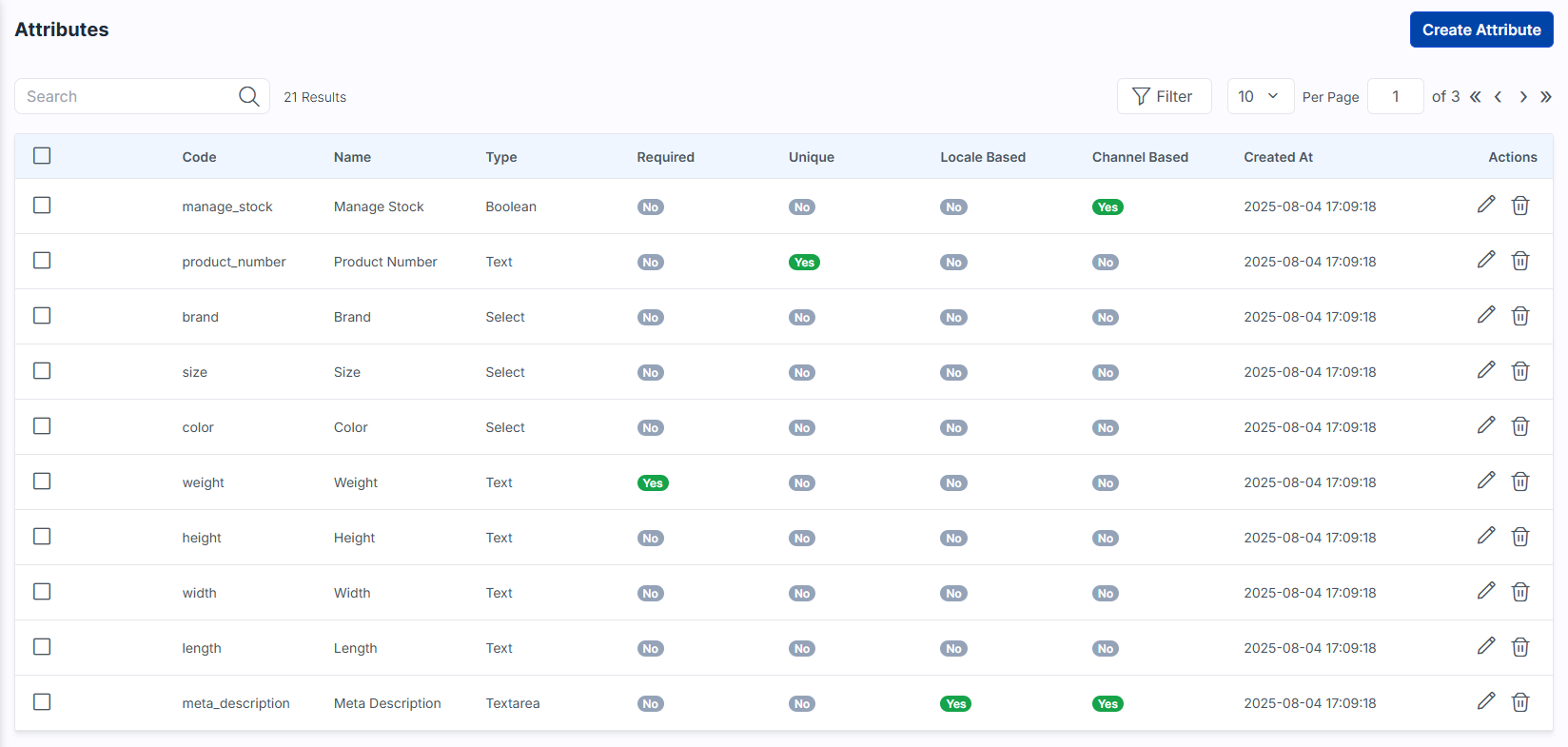
- Product appears in the Products Data Grid.
- History is available under Catalog → Products → Edit Product → History.
- Quick Export allows export to CSV, XLS, XLSX.
How to Create a Configurable Product
- Go to Catalog → Products and click Create Product.
- Select product type Configurable, choose an Attribute Family, and enter SKU.
- Click Save Product.
- Select Configurable Attributes (e.g., size, color).
- Complete General Attributes, descriptions, and enable Status.
- Assign the product to Categories.
- Under Variations, click Add Product and configure variants.
- Add as many variants as required.
- Configure Associations (Related, Upsell, Cross-Sell).
- Click Save Product.
After Saving a Configurable Product
- Visible in the Products Data Grid.
- History and Quick Export features are available.
- Attribute badges indicate per channel, per locale, or both.
Category Management
Categories define the hierarchical structure of your catalog, making it easy for customers to find products.
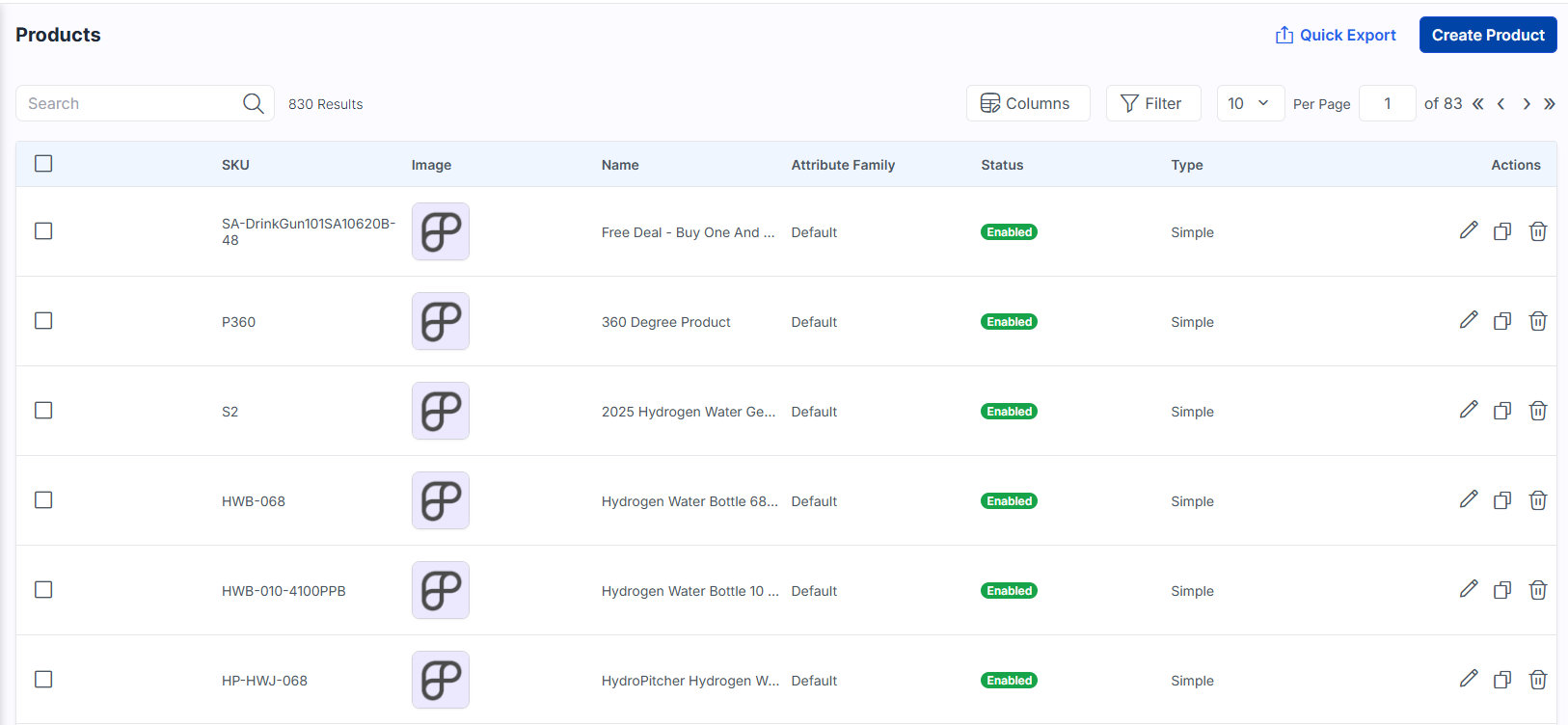
Root Category
- Enterpristore PIM provides a default root category.
- The root category acts as the top-level container for all subcategories.
How to Create a Category
- Go to Catalog → Categories → Create Category.
- Enter Code, Name, and Description.
- Optionally assign to a parent category (e.g., root).
- Click Save Category.
The new category appears in the Category Data Grid.
Category Fields
Category fields behave like product attributes but are used specifically for categories.
Available Category Field Types:
- Text – Single-line text input
- Textarea – Multi-line text input
- Boolean – True/False (Yes/No)
- Select – Dropdown with single selection
- Multiselect – Dropdown with multiple selections
- Datetime – Date and time picker
- Date – Date-only picker
- Image – Image upload field
- File – File upload field
- Checkbox – Binary on/off choice
You Can:
- Define labels, validation rules, and locale-based values
- Configure status, position (sort order), and display section (e.g., General vs Configurable)
Attributes & Attribute Structures
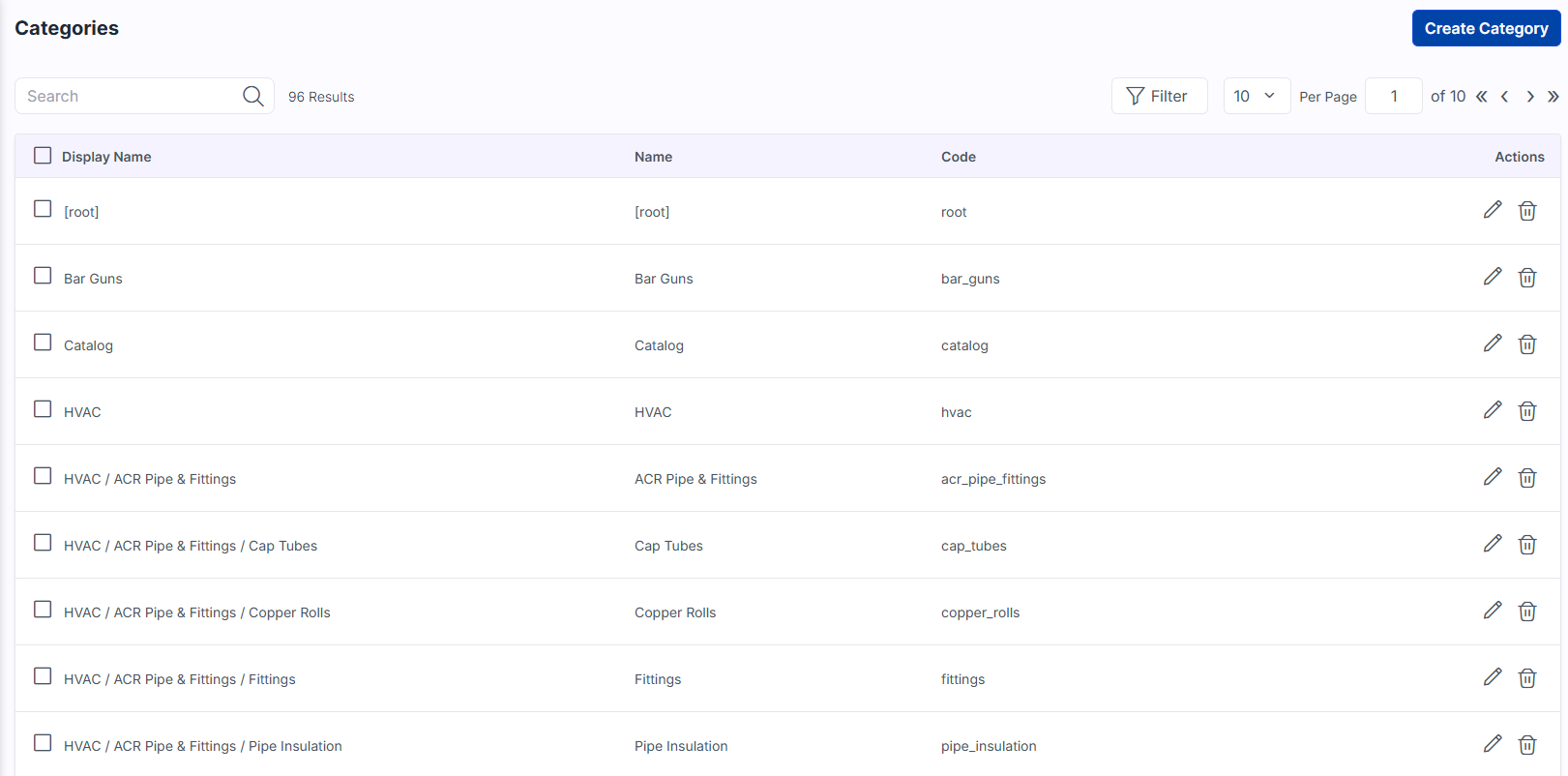
Attributes capture product characteristics such as Color, Size, Pattern, etc. They shape both how data is stored and how customers interact with your products.
Attribute Input Types
| Type | Description |
| Text | Single-line input field |
| Text Area | Multi-line input for paragraphs (e.g., long descriptions) |
| Boolean | Yes/No toggle switch |
| Select | Dropdown with a single selectable option |
| Multi Select | Dropdown with multiple selectable options |
| Date | Date value in preferred format |
| Date Time | Date and time with time zone |
| Image | Image upload/display |
| Gallery | Multiple images per product with drag-and-drop ordering |
| File | File upload (documents, images, etc.) |
| Checkbox | Toggleable state or option |
| Price | Additional price fields for monetary values |
How to Create a Product Attribute
- Go to Catalog → Attributes → Create Attribute.
- Enter Code and select Data Type (input type).
- Provide a Label.
- Configure Validation (required, unique, etc.).
- Is Unique is available for Text, Datetime, and Date.
- Specify whether the attribute value is per locale and/or per channel.
- Click Save Attribute.
- Assign the attribute to an Attribute Family:
- Go to Catalog → Attribute Families
- Edit a family
- Drag the attribute from Unassigned Attributes into a group
- Click Save Attribute Family
Attribute Families & Attribute Groups
Attribute Families
Attribute Families define the data structure for a product type.
- Group attributes for specific product types
- Enable bulk import of required attributes
- Control which fields appear on the product edit page
Creating an Attribute Family:
- Go to Catalog → Attribute Families → Create Attribute Family.
- Drag attributes from Unassigned Attributes into groups.
- Enter Attribute Family Code and Name.
- Click Save Attribute Family.
Attribute Groups
Attribute Groups organize attributes into logical sections (e.g., General, Technical, SEO).
Creating an Attribute Group:
- Go to Catalog → Attribute Groups → Create Attribute Group.
- Enter the group Code and Label.
- Click Save Attribute Group.
- Assign the group to a family:
- Go to Catalog → Attribute Families → Edit
- Click Assign Attribute Group
- Select the group and click Assign Attribute Group
The group appears on product forms once at least one attribute is assigned.