Effective product data management relies on a secure, well-configured environment that adapts to both your team structure and your market reach. This section details the essential administrative controls within Enterpristore, guiding you through the setup of Users and Roles to ensure precise access management. Beyond security, you will learn how to configure the global context of your catalog—defining Locales, Currencies, and Channels—as well as how to establish secure API Integrations that connect your PIM seamlessly with external systems.
Users, Roles & Settings
Users
Users include product managers, content editors, marketers, administrators, and integrators.
Creating a User:
- Go to Settings → Users → Create User.
- Enter:
- Name
- Password
- UI Locale
- Timezone
- Role
- Status
- Image (optional)
- Click Save User.
Settings
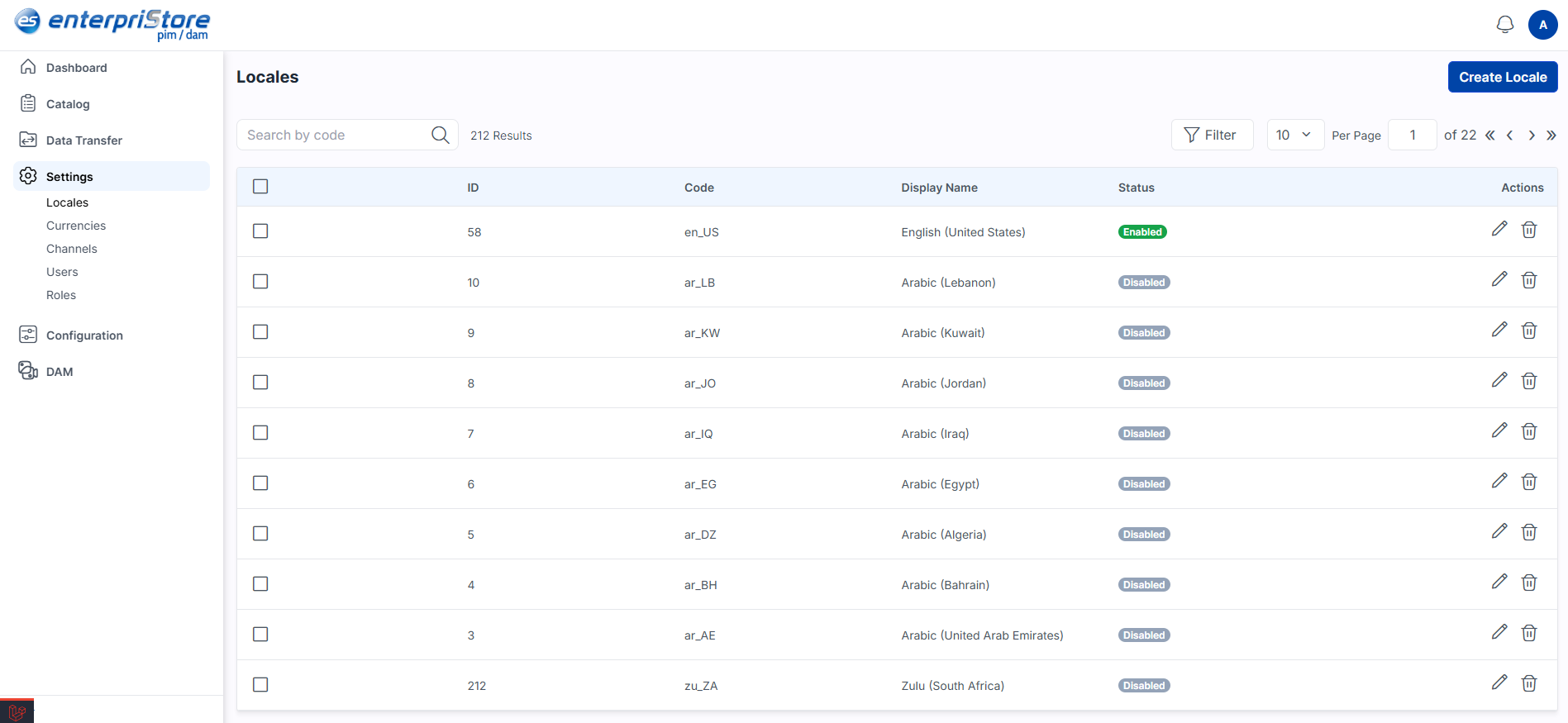
Locales
Locales define regional/cultural settings such as language and formatting.
Creating a Locale:
- Go to Settings → Locales → Create Locale.
- Enter Code (unique language code) and Status.
- Save, then assign this locale to one or more Channels under Settings → Channels.
Currencies
Easily manage pricing across global markets.
Adding a Currency:
- Go to Settings → Currencies → Create Currency.
- Enter:
- Code
- Symbol
- Decimal places
- Status
- Save and assign to channels under Settings → Channels.
Channels
Channels let you manage multiple stores, sites, markets, or brands from a single backend.
Creating a Channel:
- Go to Settings → Channels → Create Channel.
- Configure:
- Channel Code
- Root Category
- Name Translations
- Locales & Currencies
- Save the channel.
After setup, channel-specific values can be managed on the product edit page.
Roles
Roles define access levels and responsibilities.
- Permission Types:
- Custom – Limit which menus and features a role can access
- All – Full access to all menus and features
Integration (API)
Integration provides secure, controlled API access for external systems.
Setting Up an Integration:
- Go to Configurations → Integration → Create.
- Configure:
- Permissions – Custom or All
- Name – Integration name
- Assign User – User associated with the integration
- Save, then click Generate to create API Credentials.
- Use these credentials for API-based access.
Import & Export - Efficiently handle large datasets with robust bulk data tools.
Managing a dynamic product catalog often involves moving vast amounts of data between systems, a task that demands both speed and accuracy. Enterpristore PIM simplifies this process with powerful bulk transfer tools designed to handle large datasets efficiently. Whether you are onboarding thousands of new SKUs or extracting data for external analysis, the following breakdown outlines how to configure, execute, and track your Import and Export jobs to ensure seamless data mobility.
Import (Bulk Import)
Use Import to load large quantities of Products or Categories.
Process:
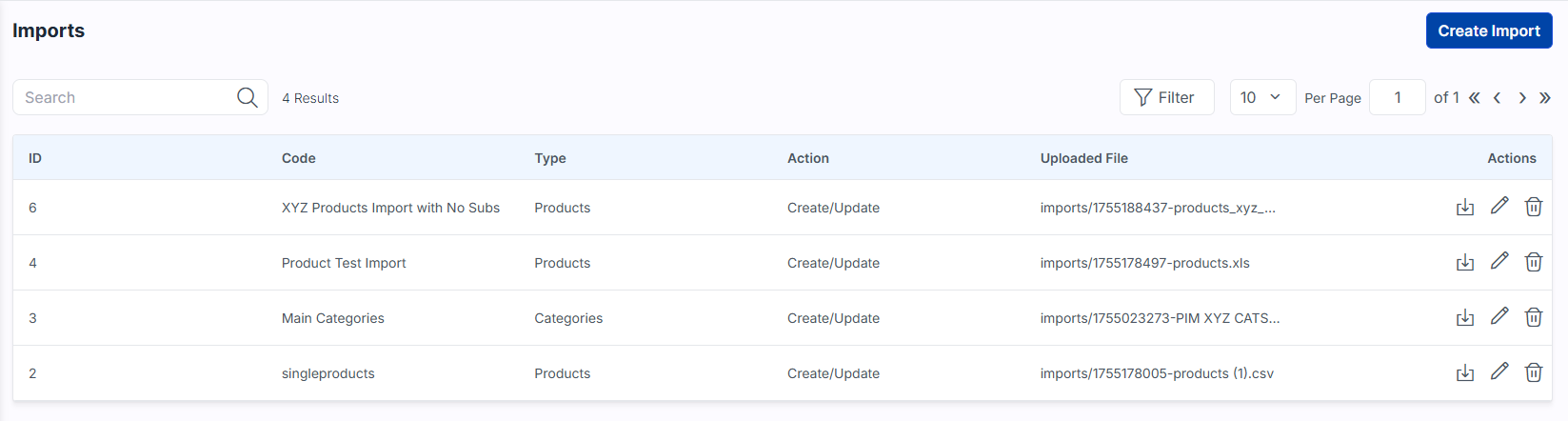
- Go to Data Transfer → Imports → Create Import.
- Configure:
- Code– Identifier for the import process
- Type– Products or Categories
- File– CSV, XLS, XLSX (matching provided sample templates)
- Image Directory Path– For product images (e.g., /project-root/storage/app/import/product-images)
- Action– Create/Update or Delete
- Validation Strategy– Skip Errors or Stop on Errors
- Allowed Errors– Maximum errors before stopping
- Field Separator– e.g., ,
- Click Save Import.
- Click Import Now.
- Monitor progress via Data Transfer → Job Tracker, where you can see status and logs.
Export
Export data for backup, analysis, integration, or sharing with other systems.
Process:
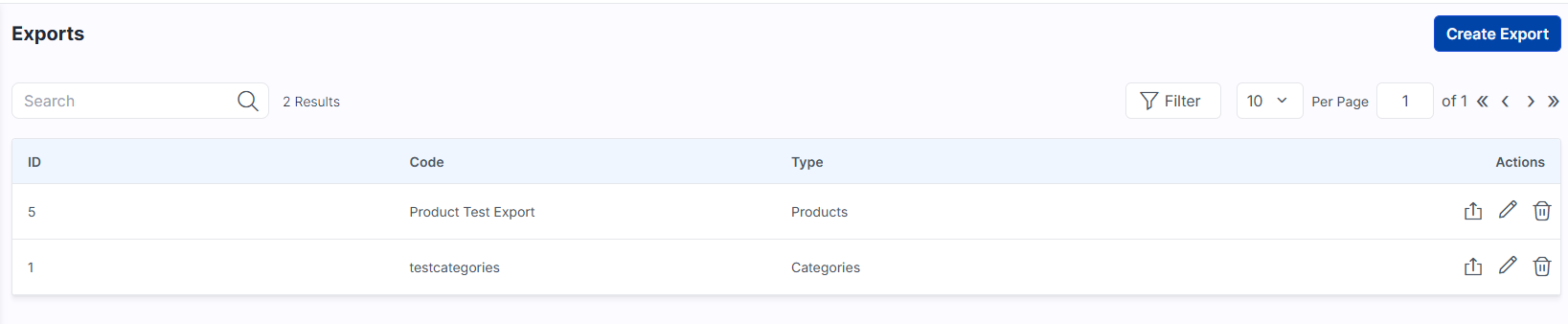
- Go to Data Transfer → Exports → Create Export.
- Configure:
- Code– Identifier for export
- Type– Products or Categories
- Field Separator– e.g., ,
- Filters– File format (CSV, XLS, XLSX)
- With Media– Include or exclude media data
- Click Save Export.
- Click Export Now.
- Monitor in Data Transfer → Job Tracker and download completed files from the Action